Photos are missing
Open iOS Settings, choose Apps, SwipeCalm, then Photos. Select Full Access to review the full library, or edit the selected-photo set. Return to SwipeCalm and refresh the screen.
SwipeCalm for iPhone
Resolve common photo access, deletion, iCloud, and Premium issues. For a reproducible problem, email us with your iPhone model, iOS version, and SwipeCalm version.
Email supportDo not attach personal photos, receipts, or Apple ID details to your first message — describe the problem and we will ask only for what is needed.
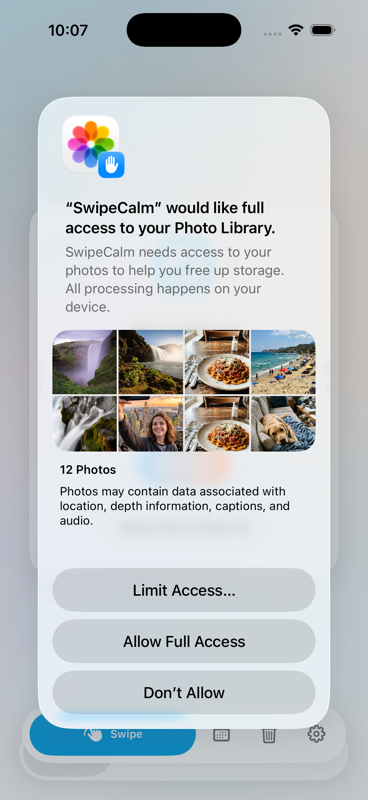
Open iOS Settings, choose Apps, SwipeCalm, then Photos. Select Full Access to review the full library, or edit the selected-photo set. Return to SwipeCalm and refresh the screen.
Use Undo before leaving the swipe flow, or open Trash and restore the item. SwipeCalm does not permanently delete a photo until you confirm deletion in Trash and approve the Apple Photos prompt.
Open the Premium screen and choose Restore Purchases while signed in to the same Apple ID used for the purchase. Check that the App Store can connect, then relaunch SwipeCalm if the entitlement is still pending.
Best Shot runs on the iPhone. Keep the device online, open the affected photos in Apple Photos to download them, then run the scan again. SwipeCalm reports how many iCloud-only items could not be analyzed.
Confirm the Apple Photos permission prompt and check Recently Deleted in Photos. iCloud Photos synchronization may take time across devices even after local deletion succeeds.
 ← BYTE CHIMERA